
Blog - .NET, ASP.NET, AJAX, Ruby and more
  • Google Banner 2

SQL Express 2008 x64 Integration with Visual Studio 2008 SP1

Yesterday I was trying to add a database to the App_Data folder of a simple web application I was creating.  During one of my computer re-installs, I didn’t install SQL Express since I normally use a full blown SQL instance, so I really had no need for it.  Now that I did need it, I wanted to run SQL Express 2008.  I am running Windows Vista x64, so I proceeded to download SQL Express 2008 x64.  I installed it and loaded up SQL Server Management Studio to make sure the instance was working (I just used the default of SQLEXPRESS for the instance name).  Everything was fine.  I then fired up Visual Studio, right-clicked on the App_Data folder of the web app, and… error (Figure 1).
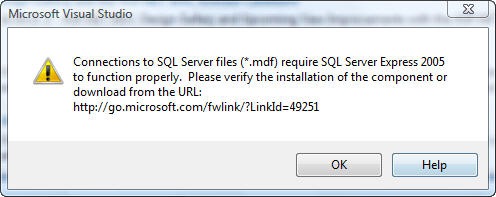
Visual Studio Requires SQL 2005
Figure 1 – Connections to SQL require SQL Express

The Fix – Option 1 – Use SQL Express 2008 x86

One quick fix for this problem is to install the 32-bit version of SQL 2008 Express instead of the x64 version.  I figured this was sort of silly, I’m running Windows x64 and I really hate installing 32-bit software if I don’t have to.  But if you’re looking for a simple solution without an extra download, this is it.

The Fix – Option 2 – Using SQL Express 2008 x64

Refusing to take the easy way out, I then started down the path of fixing this “the right way”.  The first article I came across was John Roland’s post on this error.  Not helpful in my case, but useful if your instance is named something other than the default for SQLEXPRESS. 

Next, I found someone else with my problem on the ASP.NET Forums.  Thankfully, it had a link to the fix (KB 957944).  However this isn’t a something you can just directly download from the KB article since it isn’t available to the general public just yet. After a quick Google search, I found a simple way to request the hotfix from Microsoft.  From there, I discovered a pretty cool site called Hotfixr, which automatically sends the correct request to Microsoft.  If you are looking for the specific one for this problem, you can use this direct link.

After you make a request, Microsoft will e-mail you a link to the fix as well as a password to unzip the fix.  After downloading it, I installed the fix as show in Figure 2 below.  Note this install took quite a while.  Make sure you have all your instances for VS closed.
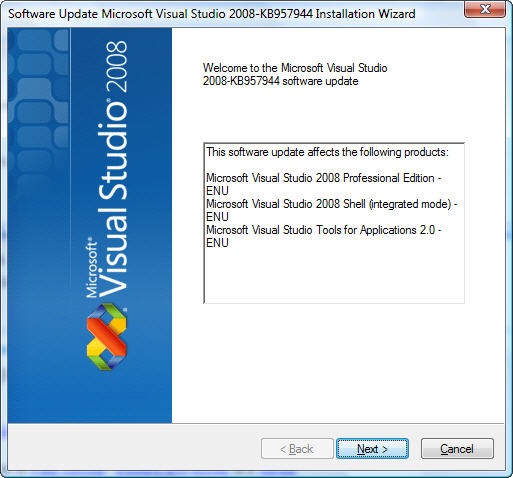
Installing KB957944
Figure 2 – Installing the KB 957944 Hotfix

Configuring SQL

I then fired up Visual Studio 2008, attempted to add a database again, but I received another error.  This was a pretty simple one though, it just stated that Named Pipes wasn’t enabled for the server.  D’oh forgot to do that.  Easy fix…  Go to the SQL Server Configuration Manger, click on the Protocols for the specific instance and enable Named Pipes (Figure 3).  
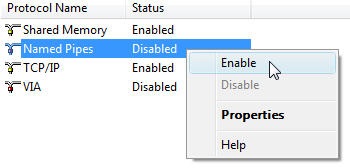
SQL Protocols
Figure 3 – Enable Named Pipes

After all of that, a database can successfully be added (Figure 4). 
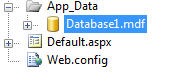
New Database
Figure 4 – Fixed… A New Database in App_Data 

This entry was posted in How To, SQL, Visual Studio and tagged , . Bookmark the permalink. Both comments and trackbacks are currently closed.

Damien White is a developer in Connecticut that simply loves coding. Ever since he was young, he has had a driving passion for computers and software development, and a thirst for knowledge that just cannot be quenched. He’s happy to share what he knows in his quest to learn as much as possible.

22 Comments

  1. Jon Paul Satre
    Posted August 22, 2009 at 4:47 am | Permalink

    Thanks very much for taking the time to write this – you’ve saved me a lot of grief!

  2. Franjo Stipanovic
    Posted August 16, 2009 at 10:18 am | Permalink

    Damien,

    I can’t thank you enough. I’ve been trying to get rid of this message for two days now and I wanted to remove 64bit version of SQL Server … and last link that I’ve checked was your and this fixed the problem in 2 minutes!

    Thank you once again!

  3. Nick
    Posted July 10, 2009 at 4:14 am | Permalink

    Good show, champ! That worked like a charm.

  4. Lewis Balentine
    Posted July 2, 2009 at 11:20 am | Permalink

    What is really iritating about all this is the fact that it exposes the total lack of a good quality assurance program at Microsoft. If they had such a program it would catch such obvious errors.

  5. Tomas
    Posted June 8, 2009 at 11:34 am | Permalink

    Last update on this:

    I contacted Microsoft Support (again) and asked what I could do about this. They referred me to the Visual Studio Support Center, which takes a $99 fee for asking a question (!?), so I’m just not going to bother. I have described my problem on StackOverflow (link below), so if anyone else comes here with the same problems, look for answers in that post:

    http://stackoverflow.com/questions/964723/unsolvable-bug-in-visual-studio-how-do-i-connect-to-sql-server-2008-express

    For now, I’m just going to go with the x86 version. It really won’t make a huge difference, but the fact that it seems so impossible to get two MS programs to work together, even though they are very obviously created to do so, is just plain annoying. Sigh…

  6. Posted June 7, 2009 at 9:25 pm | Permalink

    @Tomas -
    Oh man, what a horrible time you are having with this. It’s just crazy that x64 is still such a second class citizen in the software world. You would think with Windows 2008 R2 being x64 only, products would start to support the x64 option a bit better.

    Sadly, it may be time to just use the x86 version. :(

    -Damien

  7. Tomas
    Posted June 7, 2009 at 9:11 pm | Permalink

    OK – making some progress.

    It turns out the disc I had was too old to include the Service Pack with Visual Studio. I had not spotted this – under "Help/About" in VS the version stamp ended with "SP" so I assumed it was installed. I downloaded it from microsoft.com/downloads and installed, and now "Visual Studio 2008 Professional Edition – ENU" also shows up in the list of affected programs.

    The information under "Help/About" in Visual Studio has not changed, but after running the hotfix installer, KB957944 shows up in the list of applied updates.

    But I still get the error message when I try to add a new .mdf database file to the App_Data folder. It is time to lie on the floor and cry.

  8. Tomas
    Posted June 7, 2009 at 8:39 pm | Permalink

    Hi,

    I’ve now tried the following, without success:

    1. Uninstall all possible associated programs to Visual Studio, SQL Server or .Net Framework (which left .Net 2.0 Compact Framework and .Net 3.5 Compact Framework, and nothing else, installed).
    2. Reboot.
    3. Install .NET 3.5 SP1, SQL Server 2008 Express and SQL Server Management Studio 2008 Express via the Web Platform Installer 2.0 (Beta).
    4. Reboot.
    5. Install Visual Studio 2008 Professional from disc.
    6. Reboot.
    7. Install hotfix.
    8. Reboot.
    9. Start VS, create new Web site and try to add database. Still get the error message…

    I notice that when I run the hotfix installer, it tells me that

    "This software update affects the following products:
    Microsoft Visual Studio Tools for Applications 2.0 – ENU"

    while in your screen shot two other applications are listed as well – "Visual Studio 2008 Professional Edition – ENU" and "Visual Studio 2008 Shell (Integrated mode) – ENU". Why don’t they show up on my system? Especially the first one… :S

    Grateful for all help.

    (Soon, very soon, I’m just going to go with the x86 version of SQL Server…)

  9. Posted June 7, 2009 at 11:52 am | Permalink

    @Tomas -
    I’m surprised your install didn’t work, it sounds like you did it in the correct order. VS SP1 then the hotfix, that’s it. According to the KB, "This problem occurs because Visual Studio 2008 SP1 incorrectly detects some registry keys for a 64-bit installation of SQL Server Express 2008." Of course, we have no idea "what keys" it’s looking for. This post: http://blogs.msdn.com/sqlexpress/archive/2008/10/02/faq-error-creating-a-service-based-database-in-visual-studio-2008-sp1.aspx offers a "fix", but only for a single database.

    I would try to reapply the patch after a reboot with nothing running, although you probably already did this.

    Good luck on solving the problem. If I encounter anything other information on this topic, I’ll be sure to update the post. Please let me know if you figure out a solution yourself.

    -Damien

  10. Tomas
    Posted June 7, 2009 at 6:34 am | Permalink

    Hi. Thanks for the fast reply! Really didn’t expect that =)

    My instance name is SQLExpress, and the same in VS. I noted the blog post, so I made sure before I asked…

  11. Posted June 6, 2009 at 10:45 pm | Permalink

    What is your SQL Express instance name? It defaults to SQLEXPRESS in VS. If it’s not that, see this post: http://predicatet.blogspot.com/2007/01/connections-to-sql-server-files-mdf.html.

    Hope this helps,
    -Damien

  12. Tomas
    Posted June 6, 2009 at 10:39 pm | Permalink

    The download link is broken (I got an error message saying "this service is unavailable at the moment"), but I managed to convince a support contact at Microsoft over their live chat to send me the file =)

    However, after installing the hotfix on top of Visual Studio 2008 SP1 and SQL Server 2008 Express x64 (running Vista x64 Ultimate) I still get the same error message. Does anyone have a clue on why? Do I need to install things in a different order?

  13. Posted May 10, 2009 at 11:41 pm | Permalink

    Great job! I met this problem yesterday. I tried many solutions offered by google results, only this worked.

  14. Mustafa CAKMAK
    Posted April 6, 2009 at 5:33 pm | Permalink

    I trayed X86 hotfix file. It works… Endless thank you Damien…I solved this with your helping…I am very very happy now. Thank you so much…

  15. Posted April 6, 2009 at 5:24 pm | Permalink

    @Mustafa -

    Visual Studio is x86 regardless of your operating system version which is why the patch says x86. I’m running Vista x64 and the hotfix works correctly.

    -Damien

  16. Mustafa CAKMAK
    Posted April 6, 2009 at 5:15 pm | Permalink

    hi all. I downloaded this hotfix. but it is for X86 system. I am using vista x64 ultimate. have you got this hotfix for vista x64??

  17. Posted March 27, 2009 at 9:19 am | Permalink

    parseint -
    Glad you fixed your problem! :)

    -Damien

  18. parseint
    Posted March 27, 2009 at 9:18 am | Permalink

    Nevermind, it works now, had to set the instance name to SQLEXPRESS in visual studio options.

  19. parseint
    Posted March 27, 2009 at 9:17 am | Permalink

    Hi,

    I applied this fix but im still getting the same error. Any suggestions?

  20. Panos
    Posted March 26, 2009 at 5:06 pm | Permalink

    Thank you sooooooo much. This thing has been killing me for a good 4 hours now.

  21. Posted March 25, 2009 at 5:21 pm | Permalink

    Thank you for your effort. This was really helpful.

  22. Posted March 20, 2009 at 10:47 pm | Permalink

    Hey thanks for posting this. I was just facing the exact same issue with my Win 7 install. I installed VS Web Express SP1 first (which brought SQL Server Express 2008 with it), then I installed the full VS 2008.